
Set up the weekly newsletter
Choose what goes in your city's newsletter email, preview it and see how past editions did.
What the newsletter is
Peny emails a newsletter to your city's subscribers with your recent posts and upcoming events. You choose which posts and events to feature, and Peny can fill the rest for you.
Who can do this: city staff, except view-only admins. In the sidebar, click Newsletter.
Don't see this? It may not be turned on for your city yet — email support@penyapp.com.
When it goes out
Your Newsletter page shows one of two schedules.
If you see "Next newsletter": your city is on the shared schedule. "Every city's newsletter goes out together, every Thursday at 8 a.m. in each resident's home-city time." Residents who choose monthly get it on the first Thursday of the month. Residents choose how often they get it and which topics they see, so there's nothing to pause or send by hand.
If you see "Next scheduled send" or "Sending paused": your city sets its own schedule.
- To change the next send only, click Edit beside the date, choose a Date and Time, and click Save.
- To send right away, click Send Now, then Yes, Send Now. The next send moves to the following week.
- To stop sending, click the Active status button, then Yes, pause sending. Click Paused, then Resume sending, to start again.
Change the settings
- On the Newsletter page, click Settings.
- Fill in the fields, then click Save.
On the shared schedule (Your city's section):
- Intro — a short message at the top of your city's section. Plain text, up to 600 characters.
- Reply-to email — where replies go.
- Privacy policy URL — the link in the newsletter footer. Leave it blank to use your city's feed address.
On your own schedule (Schedule & Delivery):
- Send day and Send time — when the newsletter goes out each week.
- Sender name — the "from" name subscribers see.
- Reply-to email — where replies go.
- Custom email subject — leave it blank to use the default subject.
- Privacy policy URL — the link in the newsletter footer.
- Auto-fill posts and Auto-fill events — let Peny fill empty slots for you.
Feature posts and events
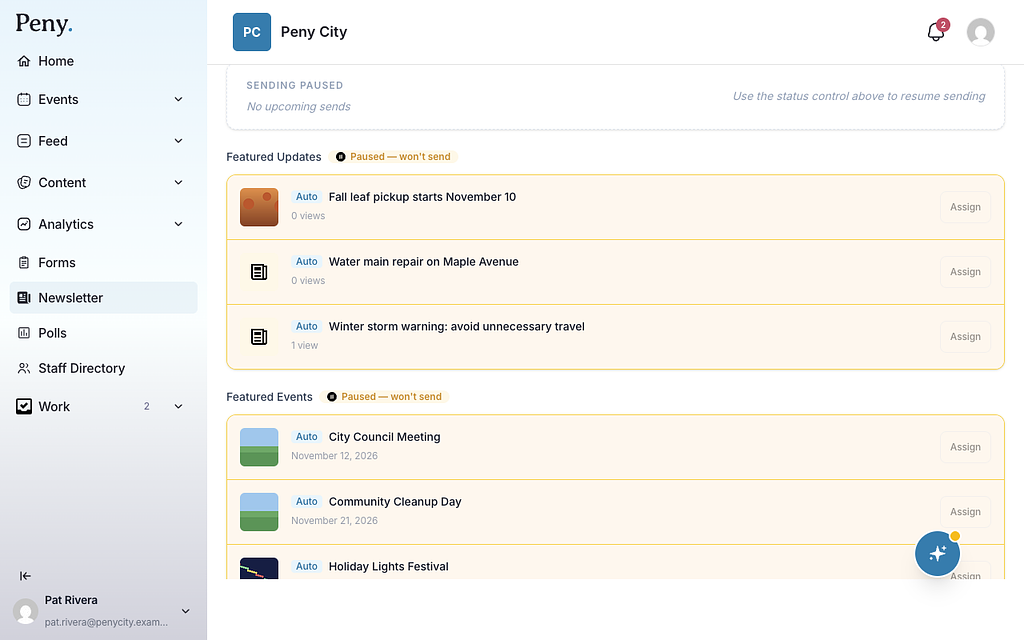
The Builder tab has two lists of slots: Featured Updates for posts and Featured Events for events. Slots Peny filled for you are marked Auto.
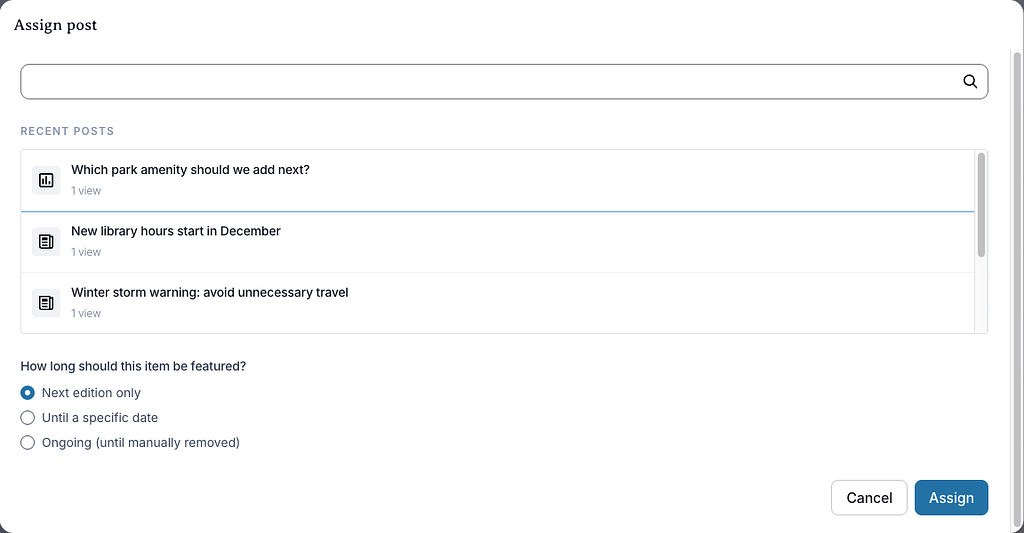
- Click Assign on a slot.
- Search by title, or pick from Recent posts or Upcoming events.
- Under "How long should this item be featured?", choose Next edition only, Until a specific date or Ongoing (until manually removed).
- Click Assign.
Use Move up and Move down to change the order, and Remove to empty a slot.
While sending is paused, the slots show "Paused — won't send" and you can't assign items. Resume sending to manage featured content.
Preview the email
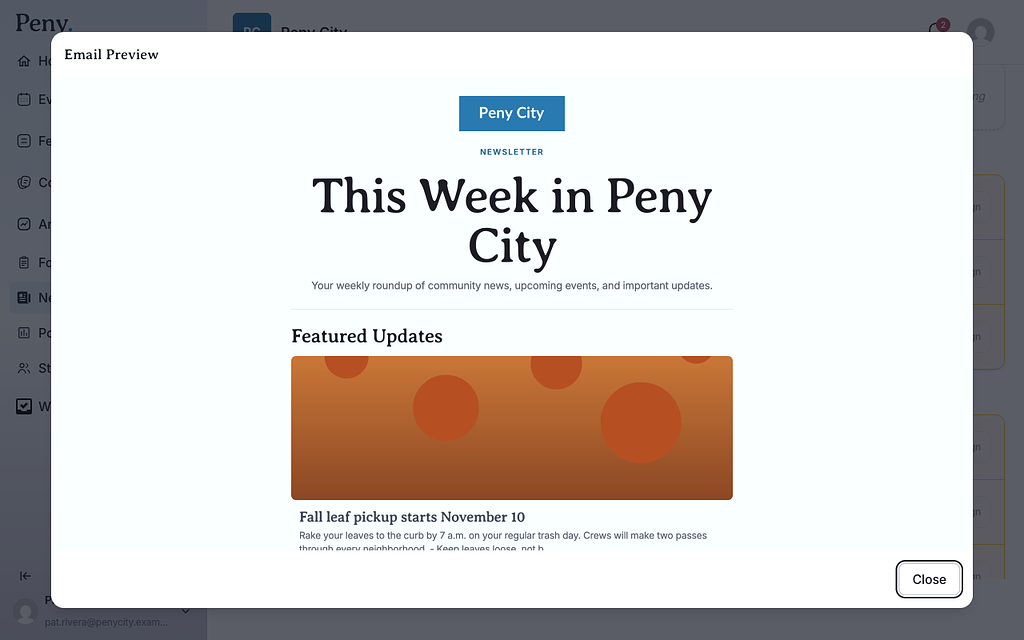
Click Preview email (or the eye button, Preview Email, beside the next send date) to see the newsletter as subscribers will get it. It opens in the Email Preview window. Scroll to read the whole email, then click Close.
While sending is paused, the button beside the date is hidden. Resume sending to preview the email.
Check past editions
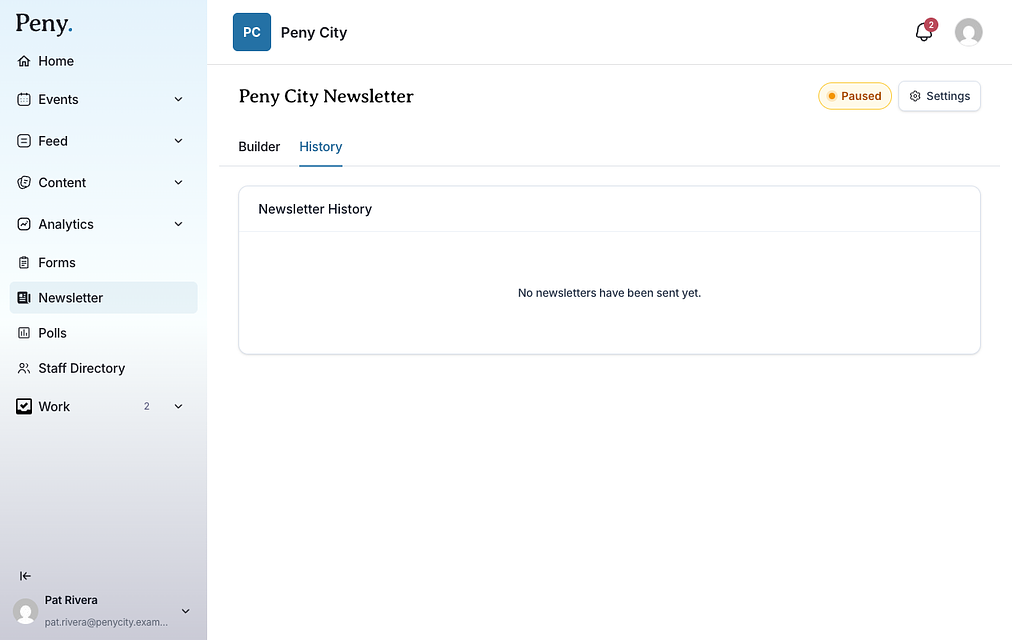
Click the History tab. Newsletter History lists each edition with its Date Sent, Recipients, Delivered, Failed/Bounced, Clicks and Unsubscribes. Click VIEW to see the email that went out. Until your first newsletter goes out, it says "No newsletters have been sent yet."
How residents subscribe
Signed-in residents who haven't subscribed see a banner, "Stay in the loop with" your city, with a Subscribe button. Every newsletter has an unsubscribe link.