
Form block
Let residents fill in one of your forms right on a website page.
What it's for
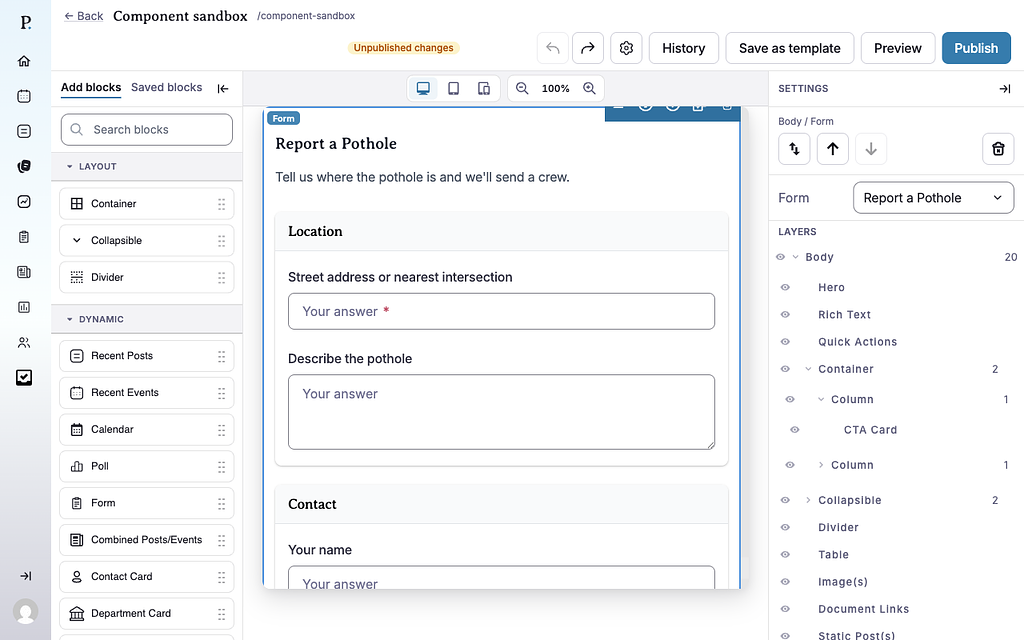
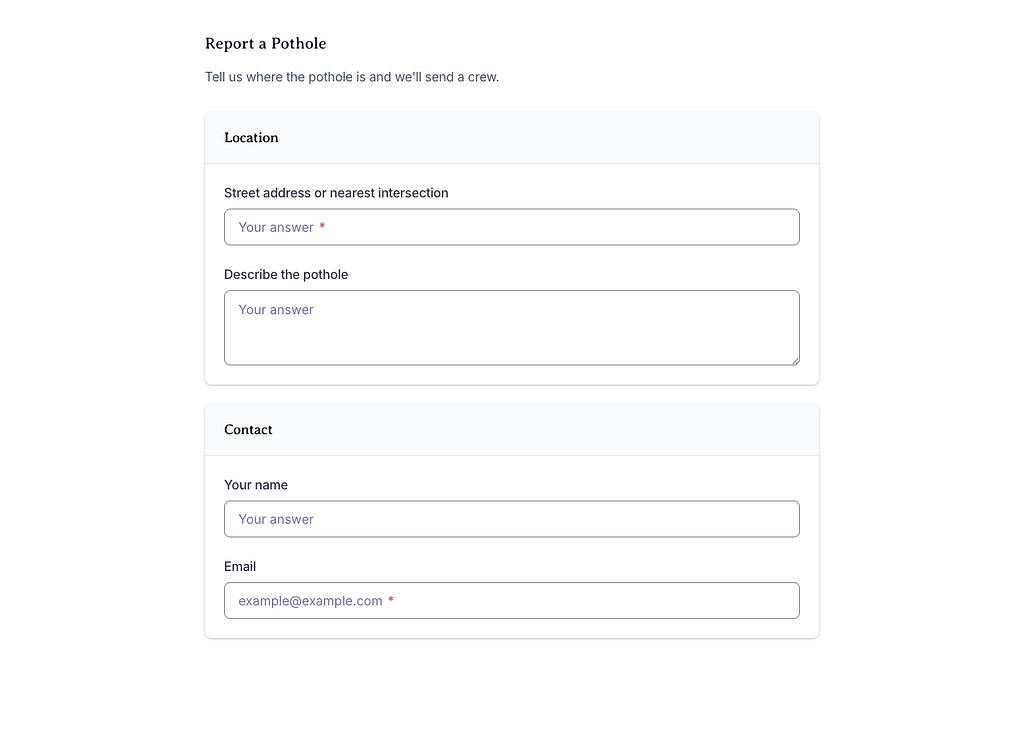
The Form block puts one of your city's published forms on a page — a pothole report on the Streets page, a sign-up on an event page. Residents fill it in and submit it without leaving the page, and their submissions arrive with the form's other responses.
Add it to a page
Who can do this: City admins, in the website builder.
You need a published form. Build and publish it in Forms first.
Don't see this? It may not be turned on for your city yet — email support@penyapp.com.
- In the left sidebar, open Content › City Pages.
- Find the page and click Edit. The page opens in the builder.
- In the Add blocks panel on the left, find Form under Dynamic. You can also type "Form" in Search blocks.
- Drag Form onto the page where you want it. Or select the block it should follow and click Form to add it right below — with nothing selected, it goes at the end of the page.
- The new block is selected and its settings appear in the Settings panel on the right.
- In the Settings panel, open the Form menu and pick your form. You can type to search. The block shows "Pick a form" until you do.
- Your changes save as a draft as you go. Residents see them after you click Publish — or Ready for review, if your city reviews page changes.
Settings
In the side panel
- Form — The form to show. Only published forms are listed.
In the Edit popup
The Form block has no Edit popup. To change the form's questions, edit the form itself in Forms.
What residents see
The form, ready to fill in, with its submit button. The block always shows the form's current published version: when you edit the form and publish it again, the page shows the new version — no change to the page needed.
If the form is deleted or no longer has a published version, the block shows nothing on the page. In the builder it says "This form isn't available".
Tips
- Add a sentence above the form (in a Rich Text block) saying what happens after residents submit it.
- Keep the form on one page that residents can find, and link to it from Quick Actions or a CTA Card.
- Check phones: click the Mobile preview button above the canvas.