
Hero block
Put a title banner at the top of a page and choose how big and bold it is.
What it's for
The Hero is the title banner at the top of a page. Its title is the page's main heading, so every page should start with one Hero.
It comes in two styles:
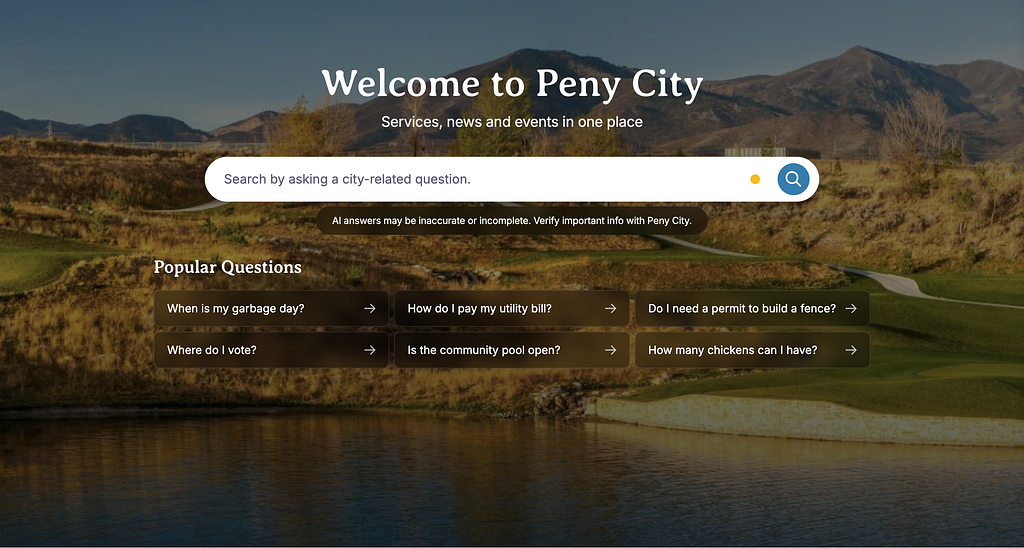
- Home Page — a large photo banner with the title, a subtitle, a search box that asks Peny's AI, and six Popular Questions. Use it on your home page.
- Secondary Pages — a smaller band in your city's brand color with the title, a subtitle and an optional button. Use it on every other page.
Add it to a page
Who can do this: City admins, in the website builder.
Drag the Hero to the very top of the page — it's the page's main heading.
- In the left sidebar, open Content › City Pages.
- Find the page and click Edit. The page opens in the builder.
- In the Add blocks panel on the left, find Hero under Content. You can also type "Hero" in Search blocks.
- Drag Hero onto the page where you want it. Or select the block it should follow and click Hero to add it right below — with nothing selected, it goes at the end of the page.
- The new block is selected and its settings appear in the Settings panel on the right.
- New Hero blocks start in the Secondary Pages style, with the page's title as their title. To change the style, pick one under Style in the Settings panel.
- Click Edit settings in the Settings panel (or double-click the block) and fill in the fields.
- Click Save.
- Your changes save as a draft as you go. Residents see them after you click Publish — or Ready for review, if your city reviews page changes.
Settings
In the side panel
- Style — Home Page (the large photo banner) or Secondary Pages (the smaller brand-color band). New Hero blocks start as Secondary Pages. The fields in the Edit popup change with the style.
In the Edit popup
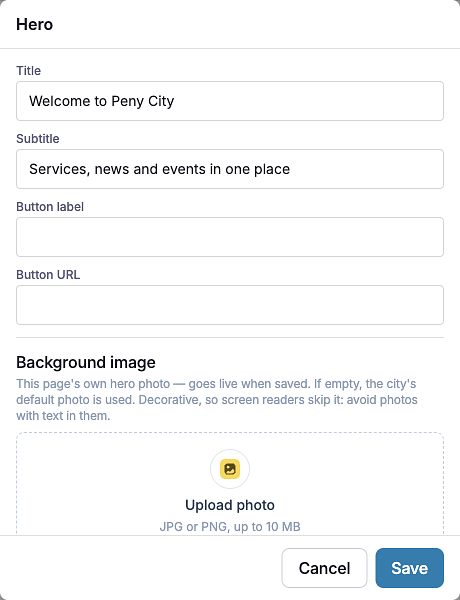
- Title — Required. The page's main heading, up to 200 characters.
- Subtitle — Optional. A short line under the title, up to 500 characters.
- Button label and Button URL — Secondary Pages style only. Adds a white button under the subtitle. It shows only when both are filled in. The URL can be a page on your site (starting with "/"), a full web address, an email link (starting with "mailto:") or a phone link (starting with "tel:"). The label can be up to 80 characters.
- Background image — This page's own hero photo. Click Upload photo and choose a JPG or PNG up to 10 MB. Use Replace photo or Remove photo to change it. If you leave it empty, your city's default hero photo is used. Both styles use it: the Home Page style fills the banner with it, and the Secondary Pages style fades it in on the right side of the band.
- Popular questions — Home Page style only. Six questions, Question 1 to Question 6, up to 100 characters each. All six are required.
Two changes go live right away
Most Hero changes wait until you publish the page. These two don't:
- Background image — a new or removed photo shows on the live page as soon as you click Save.
- Popular questions — the six questions belong to your whole city, not to one page. Saving them changes them right away on your live site. They're also the suggested questions on your city's Ask Peny page.
What residents see
Home Page style: the photo fills the banner behind a dark overlay, so the white title stays readable. Under the title is a search box ("Search by asking a city-related question."). What residents type there opens Peny's AI assistant with their question. A short note about the AI assistant sits below the search box, then your Popular Questions — clicking one asks Peny's AI that question.
Secondary Pages style: a band in your city's brand color with the title, subtitle and button. If there's a photo, it shows on the right side on tablets and computers. On phones the band stays plain brand color so the text is always easy to read.

Tips
- One Hero per page, at the top. Its title is the page's only main heading (H1). A second Hero adds a second main heading, which confuses people using screen readers.
- Keep the title short. It's large text, especially in the Home Page style, and long titles wrap onto several lines on phones.
- Photos are decorative. Screen readers skip the background image, so avoid photos with words in them. Put anything important in the title or subtitle.
- Write popular questions the way residents ask them, like "When is trash pickup?" Peny's AI answers them from your city's content.
- Home page layout: put a Quick Actions block right under a Home Page style Hero and turn on Overlap the block above to tuck the tiles up onto the photo.
- Check phones: click the Mobile preview button above the canvas to see how the Hero looks on a small screen.
Example
The banner at the top of this page is a Hero block in the Secondary Pages style, with a title and a subtitle and no photo.