
Document Links block
List the documents and links residents need, grouped under clear headings.
What it's for
Document Links is a tidy list of links — forms, reports, ordinances, other pages or other websites — optionally grouped under headings like "Forms" and "Reports". Peny documents open in a preview right on the page.
Add it to a page
Who can do this: City admins, in the website builder.
- In the left sidebar, open Content › City Pages.
- Find the page and click Edit. The page opens in the builder.
- In the Add blocks panel on the left, find Document Links under Content. You can also type "Document Links" in Search blocks.
- Drag Document Links onto the page where you want it. Or select the block it should follow and click Document Links to add it right below — with nothing selected, it goes at the end of the page.
- The new block is selected and its settings appear in the Settings panel on the right.
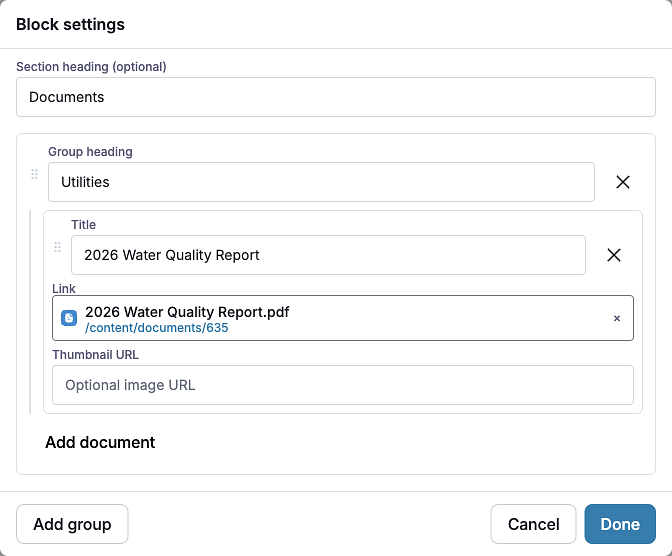
- A new block starts with the heading "Documents" and one empty group. Click Edit settings in the Settings panel (or double-click the block) to open the document editor.
- In the group, click Add document. Type a Title and fill in the Link — type a web address or click Browse to pick a document, topic, post, event or page in Peny.
- Add more documents, or click Add group to start another group with its own Group heading.
- Click Done.
- Your changes save as a draft as you go. Residents see them after you click Publish — or Ready for review, if your city reviews page changes.
Settings
In the side panel
- Heading alignment — Left (default), Center or Right. Places the section heading. Group headings always stay on the left.
- Alignment — Left, Center (default) or Right. Places the list itself on wide screens.
In the Edit popup
Section heading (optional) — A heading above the list, such as "Documents & forms".
Groups:
- Add group — Adds a group. A block can have up to 20 groups.
- Group heading — Optional. A heading for the group, such as "Forms".
- Add document — Adds a link to the group.
Each document:
- Title — The link text residents see. Required.
- Link — A page path like "/permits", a full web address, or click Browse to pick a document, topic, post, event or page in Peny. Picking one fills in an empty title for you.
- Thumbnail URL — Optional. The web address of a small image to show instead of the document icon.
Drag groups and documents by their handles to reorder them — you can drag a document into another group. Click the × to remove one.
What residents see
A list of links, each with a document icon (or your thumbnail). The section heading and group headings sit above their lists.
- Peny documents open in a preview window on the same page.
- Links to other websites open in a new tab and show a small new-tab icon.
- An item with no link shows grayed out and can't be clicked.

Tips
- Write titles that make sense on their own, like "2026 Water Quality Report" rather than "Download". Screen readers often list links without the text around them.
- Group long lists under short headings so residents can scan them.
- Pick Peny documents with Browse instead of pasting a file address, so they open in the preview window right on the page.
- Need dated files or versions? Use a Table block with a Link column — it sorts by date and keeps earlier versions.
- Check phones: click the Mobile preview button above the canvas.
Frequently asked questions