
Recent Events block
List your upcoming events on any page — it updates itself.
What it's for
Recent Events lists your city's upcoming published events and keeps itself up to date: new events appear and past events drop off on their own. Use it on the home page, or on a department page with a topic filter.
Add it to a page
Who can do this: City admins, in the website builder.
- In the left sidebar, open Content › City Pages.
- Find the page and click Edit. The page opens in the builder.
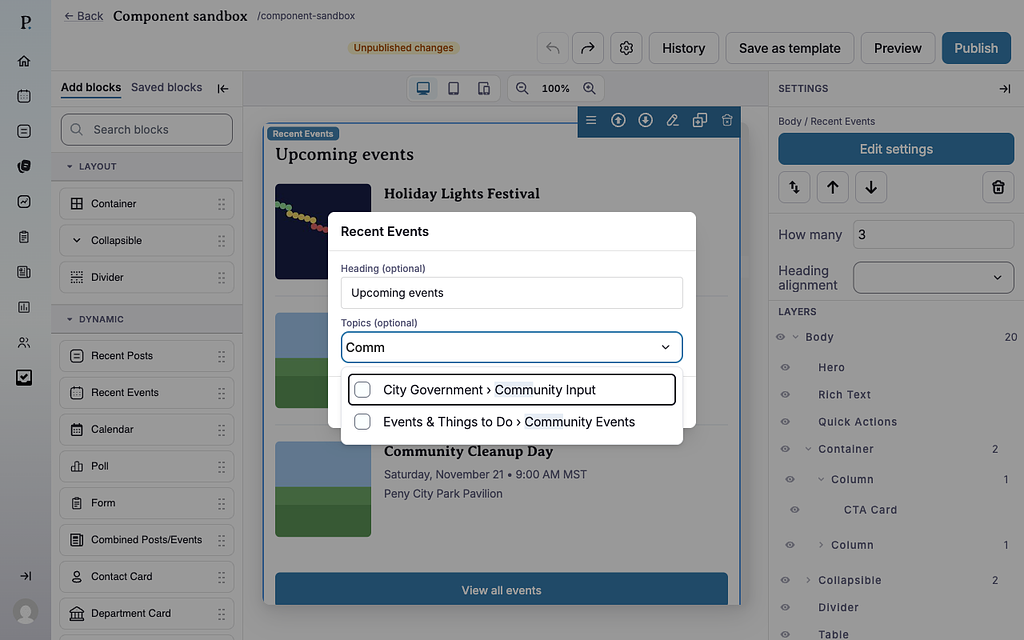
- In the Add blocks panel on the left, find Recent Events under Dynamic. You can also type "Recent Events" in Search blocks.
- Drag Recent Events onto the page where you want it. Or select the block it should follow and click Recent Events to add it right below — with nothing selected, it goes at the end of the page.
- The new block is selected and its settings appear in the Settings panel on the right.
- In the Settings panel, set How many events to show.
- To add a heading or a topic filter, click Edit settings in the Settings panel (or double-click the block), fill in the fields and click Save.
- Your changes save as a draft as you go. Residents see them after you click Publish — or Ready for review, if your city reviews page changes.
Settings
In the side panel
- How many — How many events to show, from 1 to 20. Default: 5.
- Heading alignment — Left (default), Center or Right.
In the Edit popup
- Heading (optional) — A heading above the list, such as "What's on".
- Topics (optional) — Show only events about the topics you pick; one that matches any of them is shown. Leave it empty to show all events. This field appears only when your city uses custom topics (the Topics tab in account settings). Don't see this? It may not be turned on for your city yet — email support@penyapp.com.
What residents see
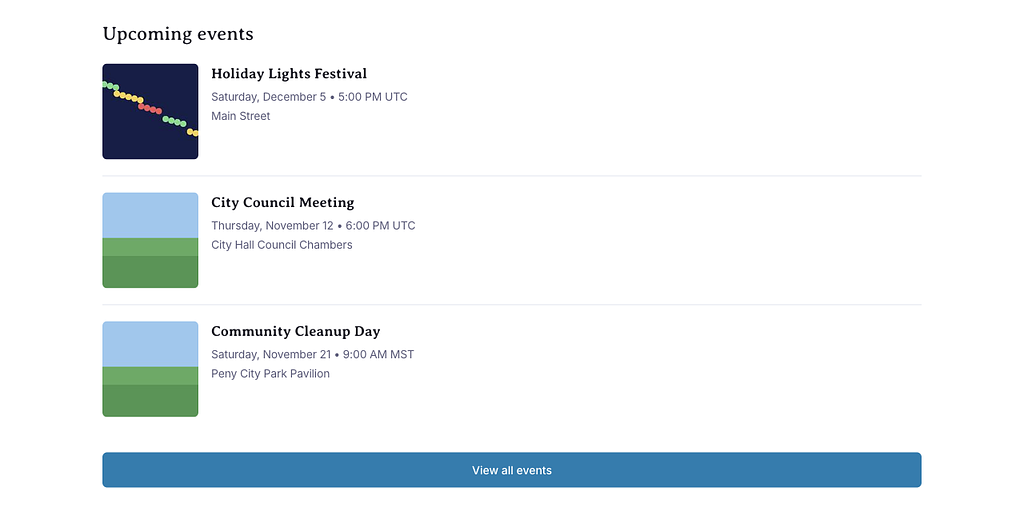
Your upcoming published events as cards: cover photo, name, date and time, and location. Promoted events come first, then the soonest. A View all events button under the list opens your city's events list.
If there are no upcoming events (or none match the topics you picked), the block shows nothing on the page. In the builder it says "No upcoming events yet".
Tips
- Want a month view? Use the Calendar block.
- Want specific events, even past ones? Use the Static Event(s) block.
- Use topics on department pages, for example family events on the Parks page.
- Check phones: click the Mobile preview button above the canvas.
Example
This is a live Recent Events block set to show 3 events, with no heading. It lists this site's own upcoming events — if there are none, it shows nothing, just as it would on your site.