
Table block
Show schedules, agendas and fee lists in rows and columns residents can filter and sort.
What it's for
A Table shows information in rows and columns: meeting agendas and minutes, fee schedules, contact lists. Each column holds text, dates or links. Date columns let residents filter by year and sort by date, and a link cell can keep earlier versions of a file, like the original and the amended agenda.
Add it to a page
Who can do this: City admins, in the website builder.
- In the left sidebar, open Content › City Pages.
- Find the page and click Edit. The page opens in the builder.
- In the Add blocks panel on the left, find Table under Content. You can also type "Table" in Search blocks.
- Drag Table onto the page where you want it. Or select the block it should follow and click Table to add it right below — with nothing selected, it goes at the end of the page.
- The new block is selected and its settings appear in the Settings panel on the right.
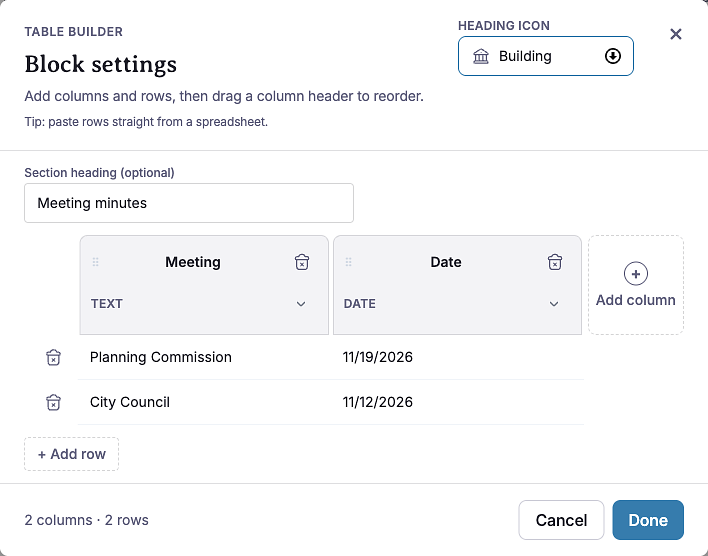
- A new table starts with the heading "New table" and two columns, Date and Title. Click Edit settings in the Settings panel (or double-click the block) to open the table builder.
- Type a Section heading, such as "Meeting agendas", and pick a Heading icon if you like.
- Name your columns, choose each column's Type, and add rows (see Settings below).
- Click Done.
- Your changes save as a draft as you go. Residents see them after you click Publish — or Ready for review, if your city reviews page changes.
Settings
In the side panel
- Heading alignment — Left (default), Center or Right. Places the icon and heading on the table's title bar.
In the Edit popup (Table builder)
Heading icon — The icon on the table's title bar. New tables start with the Building icon.
Section heading (optional) — The title on the table's bar, such as "Fee schedule". Even though it says optional, a table needs a heading to save.
Columns — Each column header has:
- A name, such as "Meeting date". Every column that has anything in it needs a name. If one doesn't, you'll see "Name every column that has something in it…" and the table won't save.
- Type — Text, Date or Link. Changing the type converts what's already in that column's cells.
- A handle to drag the column to a new place, and a button to remove it.
- Add column adds a column. A table can have up to 12.
Rows — Click + Add row to add one. A table can have up to 2,000 rows. In a table with a date column, new rows appear at the top. Drag a row by its handle to move it, or remove it with its remove button.
Cells:
- Text cells — type the text.
- Date cells — pick a date (shown as MM/DD/YYYY).
- Link cells — fill in Link text and the URL. Type a page path like "/agenda" or a full web address, or click Browse to pick a document, topic, post, event or page in Peny. If you leave the link text empty, residents see a short label made from the link.
Paste from a spreadsheet — Copy cells in Excel or Google Sheets, click a cell in the table builder and paste. The rows fill in from that cell down, and rows are added as needed.
The bottom of the builder shows how many columns and rows you have.
Keep earlier versions of a file
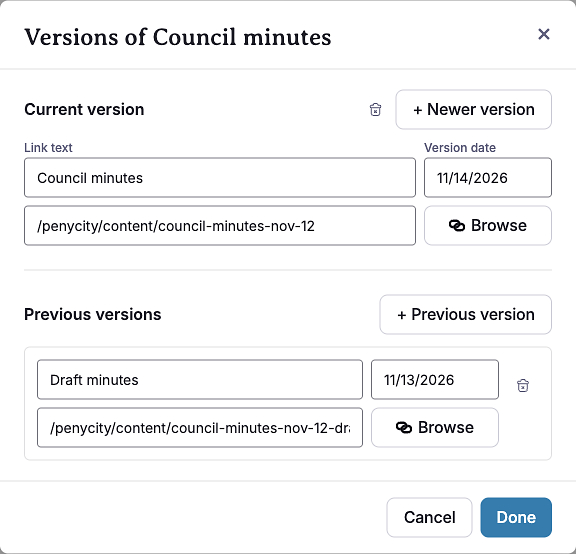
A link cell can hold the current file and up to 10 previous versions — for example, an agenda and the amended agenda that replaced it.
- In a link cell, click Versions. (Once a cell has versions, the button shows how many, like "1 previous version".)
- The Versions of … window opens. Under Current version you'll see the cell's link text, Version date and link. The version date is the date the file carries, not the day you uploaded it.
- To replace the file with a newer one, click + Newer version. The current file moves to Previous versions; then choose the newer file.
- To add an older file, click + Previous version and fill in its label, URL and Version date.
- Click Done to keep your changes, or Cancel to drop them.
- Click Done in the table builder to save the table.
What residents see
- A title bar with the icon and heading. Residents click it to open or close the table. The first table on a page starts open; any others start closed.
- Newest first. Rows are sorted by the first date column, newest at the top, with undated rows at the bottom. Without a date column, rows stay in the order you set.
- Filter by year. When the dates cover more than one year, a Filter by year menu appears with All years and each year. It opens on the current year if that year has rows.
- Sorting. Residents can click a date column's header to sort by it.
- Links. Peny documents open in a preview window on the same page. A link cell with earlier versions has a small menu listing the current file and Previous versions, with their dates. Previous versions that point to documents residents can't see (private or unpublished) are left out.
- Empty cells show a dash. A table with no rows says "This table doesn't have any rows yet."

Tips
- Use a Date column for anything that happens on a date, like meetings. Residents get newest-first order and the year filter for free.
- Write clear link text, like "Agenda – December 3", instead of "Click here". Screen readers read link text on its own.
- Keep columns few and names short. On phones, wide tables scroll sideways.
- Use Versions instead of deleting old files, so residents can still find what was posted before.
- Check phones: click the Mobile preview button above the canvas.
Example
This is a live Table block with a Date column and two Text columns.
| Meeting | Location | |
|---|---|---|
| 12/17/2026 | City Council | City Hall, Council Chambers |
| 12/10/2026 | Planning Commission | City Hall, Room 2 |
| 12/03/2026 | Parks Advisory Board | Community Center |
| No matching rows for the selected year. | ||