
Check pages for accessibility
Find and fix problems for residents who use screen readers, keyboards or low-vision settings.
What it's for
Peny checks your pages for problems that make them hard to use for residents with disabilities. It checks while you edit, again when you publish, and every night on your published site. Cities serve every resident, so it's worth fixing what it finds.
Before you start
- City admins can see accessibility results and fix pages.
- Each problem is marked Must fix or Recommended. Fix the Must fix ones first.
What Peny checks
- Images — an image with no description (alt text), or a description that doesn't help, such as a file name, a single word or "photo of…".
- Links — a link with no text, a link that only says something like "click here", or a link that opens a new tab without saying so.
- Headings — a heading that uses the page-title level, skips a level (for example from a large heading straight to a small one), or is empty.
- Tables — a table without a header row or a caption.
- Color — text or icons with too little contrast against their background.
- Moving content — an image carousel that moves on its own with no way to pause it.
- Collapsibles — a collapsible section with no title.
- Video — a video with no captions, or automatic captions nobody has reviewed.
While you edit
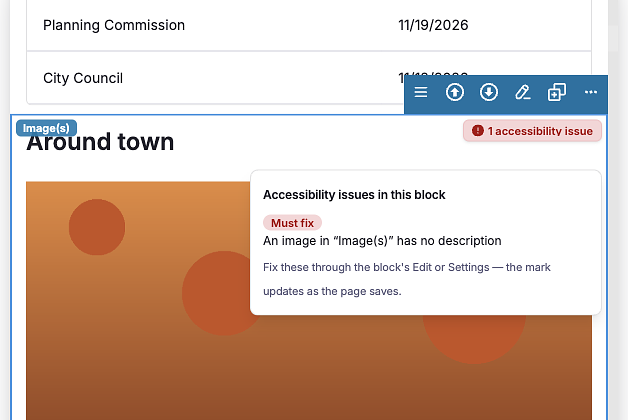
When a block has a problem, a badge such as 1 accessibility issue appears on it in the builder.
- Click the badge to open Accessibility issues in this block.
- Read what's wrong.
- Fix it through the block's Edit window or the Settings panel.
The badge updates as the page saves.
When you publish
When you click Publish, Peny checks the whole page first. If it finds problems, the Accessibility check window opens.
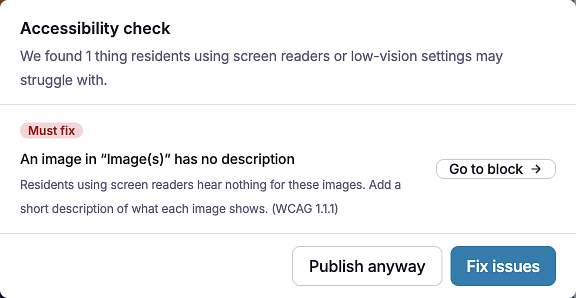
- Read each problem. It says why it matters to residents.
- Click Go to block next to a problem, or Fix issues to go to the first one.
- Fix the block.
- Click Publish again.
To publish without fixing, click Publish anyway. Peny keeps a record that you chose to publish anyway.
Review your whole site
- In the left sidebar, open Content and click City Pages.
- Click the Accessibility tab.
- If you manage more than one city, click View status → next to the city.
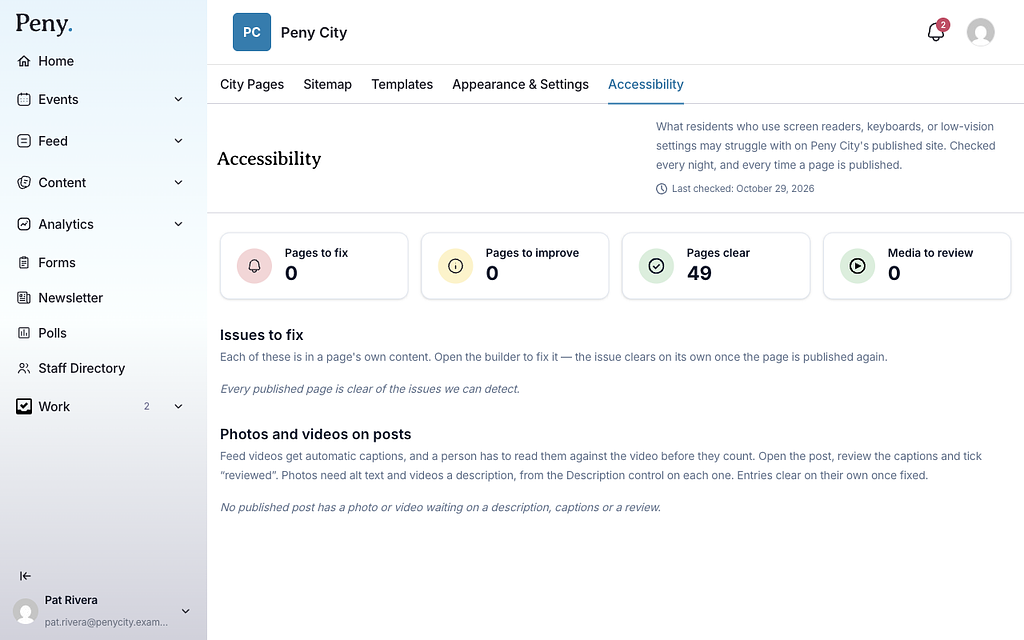
The cards at the top show Pages to fix, Pages to improve, Pages clear and Media to review. The Last checked line shows when Peny last checked. It checks every night and every time a page is published.
- Issues to fix lists each page with its problems. Click Fix in builder or Go to block to open the page at the problem.
- Photos and videos on posts lists posts whose photos need alt text or whose videos need a description or captions. Click Review in composer to fix them.
A problem clears on its own once you fix it and publish the page again.
On the City Pages list, a Needs attention badge marks pages with open problems. Click it to see that page's problems on the Accessibility tab.
Other checks
- Brand color — Peny warns you if your brand color is too light to read. See Change your site's appearance.
- Quick Actions colors — Peny warns you if the icon or label colors you pick are hard to read. See Quick Actions block.